How to Convert a Bank Statement PDF into Google Sheets
On this page
Banks love to hand you a PDF. It looks fine on screen, but the moment you want to categorize spending, reconcile against your books, or chart your cash flow, that PDF becomes a wall. The transactions are right there — you just can't use them until they're in a spreadsheet.
This guide walks through how to convert a bank statement PDF into Google Sheets, turning a static document into a transaction table you can sort, filter, and analyze.
What you're extracting
A statement's transaction table is usually the part you want, with columns like:
- Transaction date (and sometimes posting date)
- Description / payee
- Debit and credit (or a single signed amount)
- Running balance
You may also want to capture header details — account number, statement period, opening/closing balance — for reconciliation.
Why copy-paste and CSV downloads fall short
Two common shortcuts don't quite work:
- Copy-paste from the PDF tends to collapse the columns, merge the debit and credit into one field, or scramble multi-line descriptions.
- CSV download from your bank is great — if your bank offers it and if it goes back far enough. Many statements, especially older ones or from smaller institutions, are only available as PDFs.
When a PDF is all you have, you need real extraction. (For a general primer, see converting a PDF to Google Sheets.)
Step by step
With Scrape2Sheets, the process runs inside Google Sheets:
- Add your statement PDFs to Google Drive.
- Open the add-on in a Google Sheet and select the statements.
- Define your columns — Date, Description, Amount, Balance — or auto-detect them from a sample statement.
- Run the batch. Each statement is read and its transactions written into your sheet.
- Reconcile and categorize using normal spreadsheet tools.
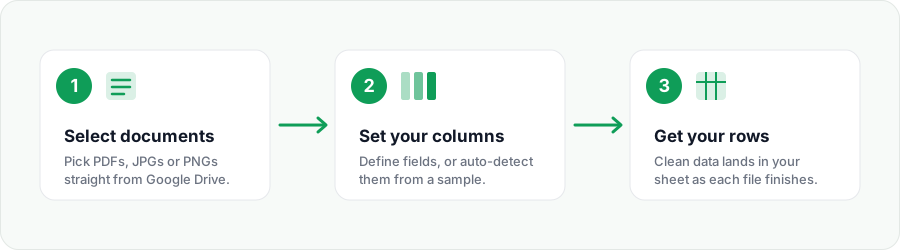
Multi-page statements are handled in one pass, and because layout isn't hard-coded, statements from different banks can go through the same schema.
Warning
Bank statements are sensitive. Documents are processed in-memory and never written to permanent storage or used to train AI models — but still share the resulting Google Sheet only with people who genuinely need it.
A note on transaction tables
Statements differ from invoices in one way: a single document contains many rows (one per transaction), not one summary row. When you set up your schema, structure it so each transaction becomes its own row. Then a three-page statement produces a full transaction ledger, not a single line — exactly what you need for reconciliation.
What to do once it's in Sheets
This is where the payoff lands:
- Categorize spending with a dropdown column and
SUMIFper category. - Reconcile by matching amounts and dates against your extracted invoice data or receipt logs.
- Chart cash flow with a running-balance line chart.
- Filter by payee to audit a specific vendor or subscription.
- Combine months by stacking several statements into one sheet for a full-year view.
Frequently asked questions
Is it safe to upload bank statements? Documents are processed in-memory and are not written to permanent storage, and they are never used to train AI models. Still, treat statements as sensitive and share the resulting sheet only with people who should see it.
Can it handle scanned statements? Yes — vision AI reads scanned and photographed statements, not just digital PDFs, so older paper statements work too.
One row per transaction or per statement? Per transaction. Set your schema up so each line in the statement becomes its own row; that produces a usable ledger for reconciliation.
How is a multi-page statement billed? Per page. A five-page statement uses five pages from your monthly allowance, regardless of how many transactions it contains.
Turn statements into data you can actually use. Try Scrape2Sheets free — 5 pages to start, no credit card required.
Try it on your own documents
Extract data from PDFs, invoices, and receipts straight into Google Sheets. Start with 5 free pages — no credit card.
Get Started Free